
The online version of Mass Image Compressor is now available at massimg.com. It is free, open source, with no account or installation required.
Our aim is the same as on desktop: give you the controls you need without making a regular compression job complicated. When you can’t install the desktop app, you now have a familiar alternative.
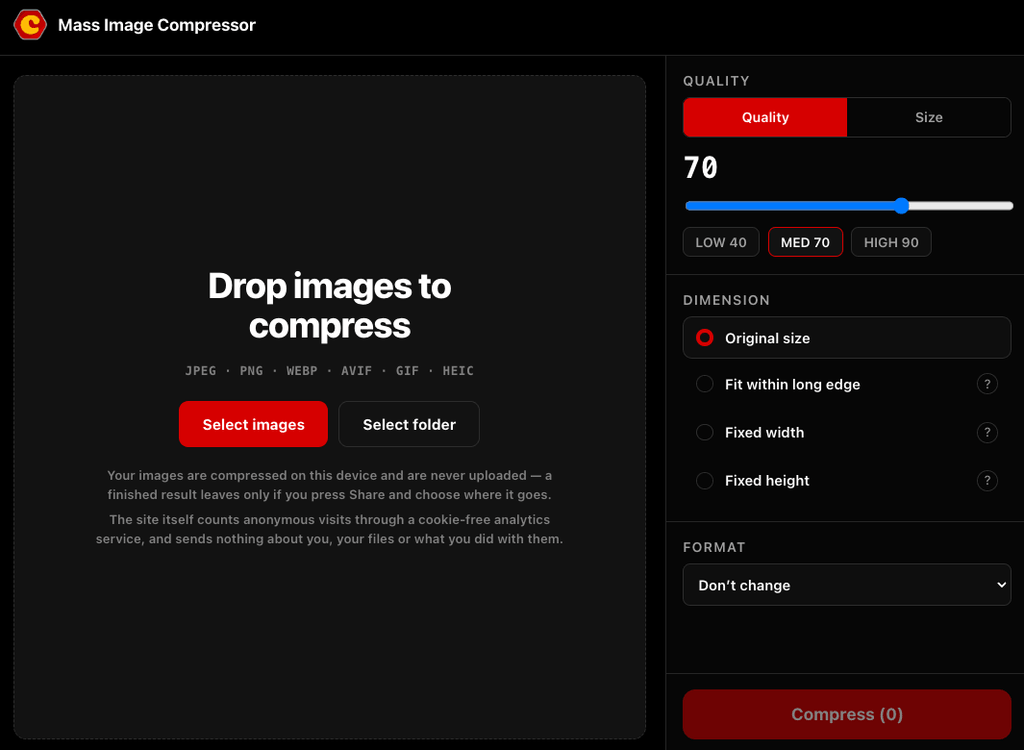
A familiar workflow, with a few additions
If you have used Mass Image Compressor on Windows or macOS, the interface and workflow should feel familiar. Add images or select an entire folder, choose your quality, dimensions, and output format, preview the result, and compress. Folder structure is preserved in the downloaded ZIP.
You can adjust quality or set a maximum file size for each output which is useful when a website requires an image below a particular upload limit. The preview shows the actual compressed result and its size, so you can check before saving.
The online version also adds cropping and rotation for individual still images.
It has grown beyond our early expectations, too: the original announcement suggested small batches and images under 20 MB. The finished version can accept substantially more, although browser memory, image dimensions, and your device still determine what it can process.
Formats, including animated images
Supported inputs include JPEG, PNG, WebP, AVIF, GIF, HEIC/HEIF, BMP, TIFF, JPEG XL, and JPEG 2000.
You can save as JPEG, PNG, WebP, AVIF, or GIF.
We have put considerable effort into animation support. Animated GIF, WebP, and PNG can stay animated through compression and resizing. Animated AVIF isn’t supported, and cropping and rotation are currently limited to still images.
Built for phones as well as computers
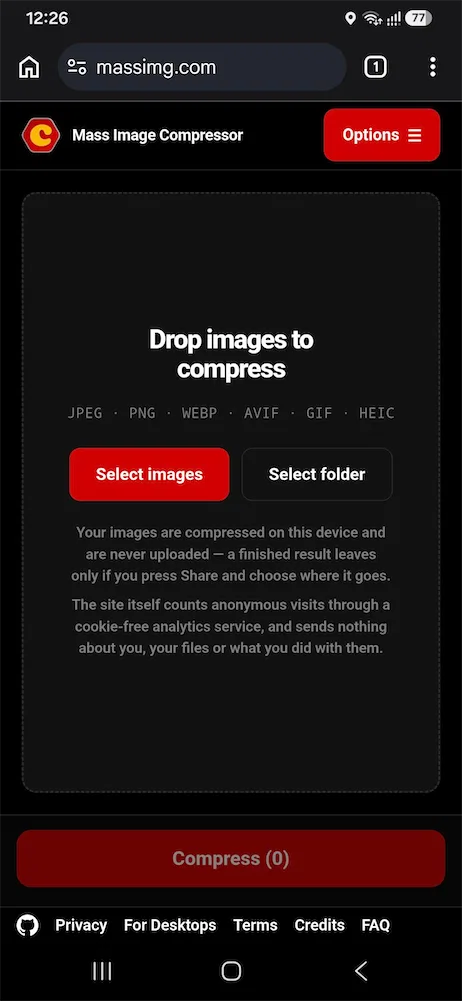
Alongside downloads, there is a Share option on supported browsers and devices. Send finished images to an app offered by your system like messaging app on your phone or email or WhatsApp on Windows.
You can also install Mass Image Compressor as a Progressive Web App (PWA) and use it offline as a short-cut.
Testing has covered Windows, Linux, macOS, and Android, using Chrome, Firefox, and Safari where available. We have also done limited testing on iOS, with fuller testing underway. The app processes copies and leaves your original files untouched so feel free to use iOS version also report any issue if you find.
Your images stay on your device
Compression, conversion, resizing, and editing happen entirely inside your browser. Your images are never uploaded to our servers. If you choose Share, you decide which app receives the finished files.
The website uses cookie-free analytics for basic visit statistics; it sends no image contents or file details.
When to choose desktop
We still recommend the desktop versions whenever practical, especially for regular work, very large batches, large images, camera RAW files, and advanced features. Desktop apps have greater freedom over memory, processing, and file access than browsers allow.
Finally, this release would not have been possible without the developers behind the open-source libraries it uses. Please visit our credits page to see their work.
Try Mass Image Compressor online at massimg.com.
Recent Posts
Previous Posts
- PNG Compression with Mass Image Compressor
- Mass Image Compressor vs IrfanView (Windows OS)
- Mass Image Compressor 2.4 on macOS
- Mass Image Compressor Crash Report
- Convert Photo to ANY Size
- Mass Image Compressor Featured on Fixyfier.com
- The Photographer’s Guide to Perfectly Optimize Images on WordPress
- V2.3 Release on macOS
- How to Install Mass Image Compressor via Winget
- MSVCP140.dll Missing Error