
In Short: Mass Image Compressor keeps PNGs safe by default. You will usually see a noticeable size drop with no visible quality change even if you have selected “Allow Quality Loss in PNG” option in UI. We do not let PNG quality drop lesser than 90%.
When people say “Compress PNG image”, they often mean two very different techniques:
- Lossless optimization (same pixels, smaller file)
- Lossy PNG compression (reduce color pallet, compensate using dithering – pixelation)
Mass Image Compressor applies both ideas but internationally defaults (and restricts) to safer path.
Purpose of this post is to decipher what Mass Image Compressor does to PNGs and why!
The low-hanging fruit: Lossless Compression
Oxipng is a lossless PNG/APNG optimizer. It tries harder than most encoders and recompresses PNG data using different compression strategies (DEFLATE params, optimal filter choices etc.). This removes non-essential chunks/metadata and reduces data required to store same pixel values.
In real-world foders, this, I call it ‘free’, optimization commonly yields meaningful gains – about 15 to 40% size reductions but 33% is mean value in my experiments.
Mass Image Compressor uses this method as it’s safe and doesn’t involve any surprise.
The aggressive approach: Reduce Colors (Pngquant1)
If you want a lot smaller PNGs, you need to reduce colors used to store PNG. It’s called color-pallet. So, instead of using millions of colors to represent an image (24/32-bit), we use just indexed 256 colors (same compression strategy is used by GIF). That color reduced (‘quantized’) image may create very large patches on the image. So another technique is applied which is called dithering to reduce the visual mismatch. It adds controlled noise pattern to ‘hide’ missing colors which is especially helpful in smoother color transitions like gradients on sky. When done well, this approach can reduce PNG size dramatically – mostly upto 70% but depends on image.
Mass Image Compressor’s Approach
Before v3.3.1 (Nov 11,2024)
Mass Image Compressor used to apply the both approaches restricted ONLY by the quality parameters set by users. That was great for size reduction, but it also meant slitent quality trade0ffs for many users who were doing “blind folder compression” with mixed images.
After v3.3.2: A more opinionated, safe default
Mass Image Compressor made a conscious product decision:
For our Mac Version, we do not do any lossy PNG compression – Only Oxipng.
For Windows version 3.x above v3.3.2 onwards, we don’t use Pngquant (lossy) approach.
For our latest offering on Windows (4.x onwards), we explicitly ask user to check “Allow Quality Loss in PNG” in compression settings. Even when user enables this checkbox, we use pngquant in moderation where image quality doesn’t fall below 90% (higher if you have set quality % higher than 90%).
This works extremely well on PNGs that are overbuilt (like screenshot, logos, flat graphics) where pallete conversion can shrink files massively but still keep the output visually clean – maintaining reputation of PNG as a higher quality image.
Sample
To demonstrate this approach we took a logo image and compressed it with Tinypng (online), Caesium Image Compressor (v2.8.5) and Mass Image Compressor (v4.2.0). Tinypng.com doesn’t provide any settings to adjust quality but Caesium and Mass Image Compressor used 80% quality setting. All these compressors are converting original PNG into 8-bit indexed color image (palettized) using Pngquant (or inspired libs) to reduce the file. Small pixel grains/noise (dithering) is added to mimic smooth gradient effect.

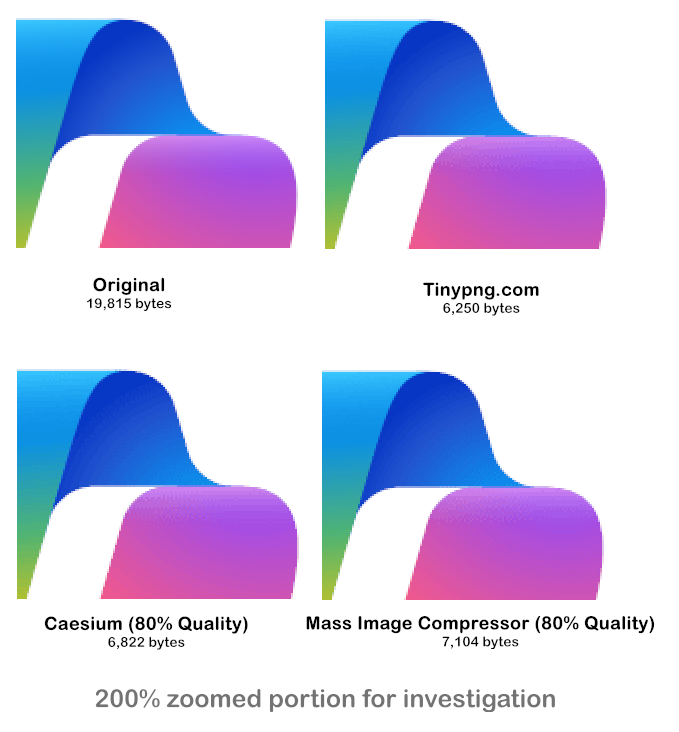
Above is 2x Zoom of a portion of Copilog log compressed with Tinypng.com, Caesium and Mass Image Compressor3.
Image size form Mass Image Compressor (64% size reduction) is slightly larger than others because Mass Image Compressor ensures minimum 90% quality even if it is set lower by the user.
Note that Image would have been same as original if “Allow Quality Loss in PNG” was unchecked in Mass Image Compressor but Oxipng pass would still optimize it to take ~10.5% less size.
Note For our Mac users: As of 15 Feb, 2026, Mass Image Compressor for Mac applies Oxipng pass ONLY and doesn’t use color quantization.
Summary
Some compression tools chase the smallest possible number, even if that means heavier dithering artifacts. Some responsible compressors provide a separate compression bar for PNGs 2. Mass Image Compressor intentionally avoids this as default. For regular photos or comprex images with many colors and gradients, a conservative PNG pipeline can produce files that are larger than what ultra aggressive tools output.
The Philosophy
Mass Image Compressor aims to give users control, but avoid doing hard by default or user oversight. We believe if user really needs to use compressed PNG images, converting those PNGs to WebP is much safer and predictable approach.
PNG still matters primarily as a lossless format. So if a user compresses a folder blindly, Mass Image Compressor tries to ensure those PNGs come out with a great quality – which is expected from a PNG (or APNG) image. If our user community want to us to follow a different path, we will ensure to provide path that is still falling back to ‘safe default’ with additional option to override the behaviour.
- Not valid for APNGs. APNG Optimizer is used GIF to PNG compression.
- Like Caesium, but it applies this philosophy across all formats which I believe is unnecessary.
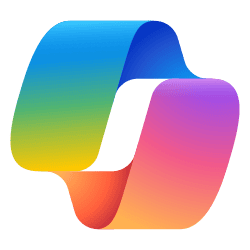
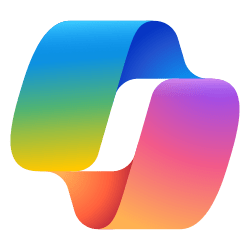
- Copilot logo compression test: Original (copilot_original.png downloaded from Wikimedia), from tinypng (copilot_tinypng.png), from Caesium (copilot_caesium_80pc.png), from Mass Image Compressor (copilot_mass_img_compressor.png).


Leave a Reply